- TypeScript 90.8%
- JavaScript 8.8%
- CSS 0.2%
- HTML 0.2%
| Filename | Latest commit message | Latest commit date |
|---|---|---|
 638f2bfa5b
* Fix resource refresh button not triggering re-fetch (#1120) The readResource function had an early return when the resource URI was already cached, preventing the Refresh button from re-fetching. Add a force parameter to bypass the cache on refresh, and update the cache-hit path to still sync the displayed content when switching between previously viewed resources. Co-Authored-By: Claude Opus 4.6 (1M context) <noreply@anthropic.com> * fix: don't cache failed resource reads and rename force to bypassCache Failed resource reads were cached in resourceContentMap, causing stale errors to be served on re-click instead of retrying. Errors now only set the display content without polluting the cache. Also renamed the `force` boolean parameter to a `{ bypassCache }` options object for self-documenting call sites. Co-Authored-By: Claude Opus 4.6 (1M context) <noreply@anthropic.com> * test: remove flaky resource-refresh e2e test The test depends on npx downloading @modelcontextprotocol/server-everything at runtime and uses waitForTimeout, making it unreliable in CI. Co-Authored-By: Claude Opus 4.6 (1M context) <noreply@anthropic.com> * fix: invalidate stale cache on refresh failure and rename opts to options Clear cached resource content when a bypassCache refresh fails, so subsequent clicks retry the fetch instead of serving stale data. Rename the inline wrapper parameter from opts to options for consistency. Co-Authored-By: Claude Opus 4.6 (1M context) <noreply@anthropic.com> * fix: surface read errors for resource_link in Tool results Previously, failed resource_link reads left resourceContentMap[uri] empty, so ResourceLinkView rendered an empty expansion with no error feedback when a read failed in the Tools tab. Track errors in a separate resourceErrorMap and thread it through ToolsTab/ToolResults to ResourceLinkView so the user sees the error message. The existing cache-skip behavior is preserved (errors don't pollute the content map, so retries still work). Also adds a ResourcesTab test asserting the Refresh button passes { bypassCache: true } to readResource, to prevent regression of #1120. Co-Authored-By: Claude Opus 4.6 (1M context) <noreply@anthropic.com> * fix: preserve cached content on refresh failure and stop writing error JSON to resourceContent Don't delete resourceContentMap[uri] when a bypassCache refresh fails; a transient network error should not wipe the last-known-good content. To prevent serving stale content after a known error, the cache-hit guard now also skips cache when resourceErrorMap[uri] is set, forcing a re-fetch until a successful read clears the error. Also stop writing JSON.stringify({ error }) into resourceContent in the catch block. sendMCPRequest already sets errors.resources (which the ResourcesTab Alert displays), and the Tools tab shows errors via resourceErrorMap. Writing error JSON into resourceContent was both redundant and could bleed through as JsonView content after callers cleared errors.resources before the next read. Co-Authored-By: Claude Opus 4.6 (1M context) <noreply@anthropic.com> * fix: use presence checks instead of truthiness for resource error state Switch from truthiness checks to presence checks in the resource error/content handling so an empty-string error message is still treated as an error. readResource's cache-hit guard now uses `uri in resourceContentMap` / `!(uri in resourceErrorMap)`, ToolResults passes `resourceError?.[item.uri]` (possibly undefined) through to ResourceLinkView, and ResourceLinkView renders the error branch when `resourceError !== undefined`. Co-Authored-By: Claude Opus 4.6 (1M context) <noreply@anthropic.com> * fix: use hasOwnProperty instead of `in` for resource cache checks The `in` operator also matches inherited properties like `toString` and `constructor`, which would cause false cache hits if a server ever returns a URI with one of those names. Switch the cache-hit guard and the error-map cleanup to Object.prototype.hasOwnProperty.call so only real cached entries match. Object.hasOwn would be cleaner but requires ES2022 lib support which the current tsconfig doesn't include. Co-Authored-By: Claude Opus 4.6 (1M context) <noreply@anthropic.com> * fix: clear resource error on read start, not only on success Previously, resourceErrorMap[uri] was only cleared when a read succeeded. During an in-flight retry (e.g., after clicking Refresh on a previously-failed resource), the stale error would remain in the map and render in ResourceLinkView while the retry was still pending. Clear the error entry after the cache-hit check passes, right before sending the request, so the UI shows the last-known-good content (or a loading state) during the retry instead of the prior error. Co-Authored-By: Claude Opus 4.6 (1M context) <noreply@anthropic.com> * fix: use || instead of ?? for error message fallback The ?? operator only falls back on null/undefined, so an Error with an empty message (new Error("")) would produce an empty string and render a blank error block. Switch to || so empty strings also fall through to String(error), which produces a non-empty representation. Co-Authored-By: Claude Opus 4.6 (1M context) <noreply@anthropic.com> * fix: only sync resourceContent on cache hit from Resources tab The cache-hit path called setResourceContent unconditionally, which meant expanding a resource_link in the Tools tab could overwrite the Resources tab's displayed content without updating selectedResource. Guard the setResourceContent call with a currentTabRef check so only cache hits from the Resources tab update the display. Co-Authored-By: Claude Opus 4.6 (1M context) <noreply@anthropic.com> --------- Co-authored-by: Claude Opus 4.6 (1M context) <noreply@anthropic.com> |
||
| .github | ||
| .husky | ||
| cli | ||
| client | ||
| scripts | ||
| server | ||
| .dockerignore | ||
| .git-blame-ignore-revs | ||
| .gitattributes | ||
| .gitignore | ||
| .mcp.json | ||
| .node-version | ||
| .npmrc | ||
| .prettierignore | ||
| .prettierrc | ||
| AGENTS.md | ||
| CLAUDE.md | ||
| CODE_OF_CONDUCT.md | ||
| CONTRIBUTING.md | ||
| Dockerfile | ||
| LICENSE | ||
| mcp-inspector.png | ||
| package-lock.json | ||
| package.json | ||
| README.md | ||
| sample-config.json | ||
| SECURITY.md | ||

MCP Inspector
The MCP inspector is a developer tool for testing and debugging MCP servers.
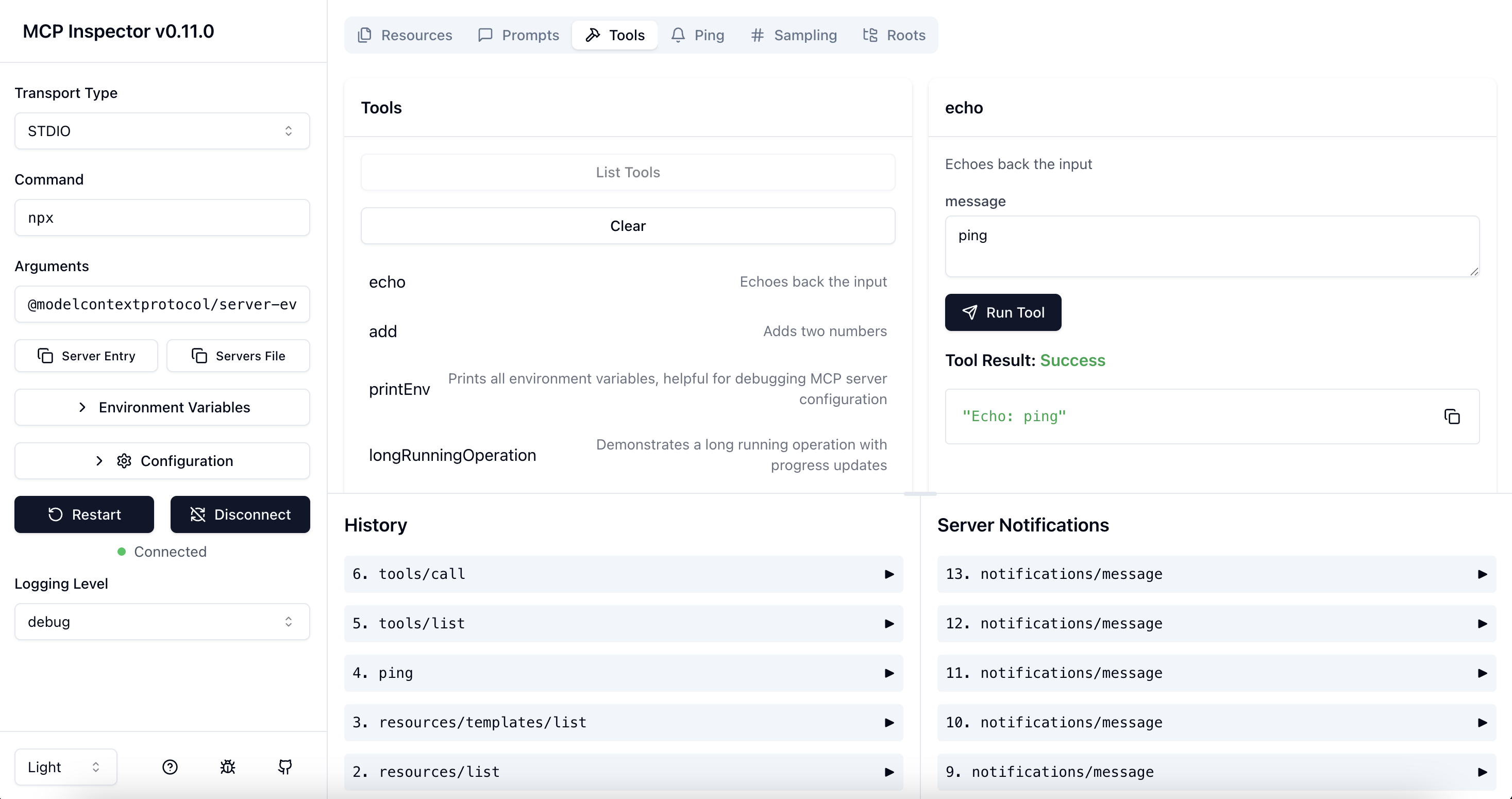
Architecture Overview
The MCP Inspector consists of two main components that work together:
- MCP Inspector Client (MCPI): A React-based web UI that provides an interactive interface for testing and debugging MCP servers
- MCP Proxy (MCPP): A Node.js server that acts as a protocol bridge, connecting the web UI to MCP servers via various transport methods (stdio, SSE, streamable-http)
Note that the proxy is not a network proxy for intercepting traffic. Instead, it functions as both an MCP client (connecting to your MCP server) and an HTTP server (serving the web UI), enabling browser-based interaction with MCP servers that use different transport protocols.
Running the Inspector
Requirements
- Node.js: ^22.7.5
Quick Start (UI mode)
To get up and running right away with the UI, just execute the following:
npx @modelcontextprotocol/inspector
The server will start up and the UI will be accessible at http://localhost:6274.
Docker Container
You can also start it in a Docker container with the following command:
docker run --rm \
  -p 127.0.0.1:6274:6274 \
  -p 127.0.0.1:6277:6277 \
  -e HOST=0.0.0.0 \
  -e MCP_AUTO_OPEN_ENABLED=false \
  ghcr.io/modelcontextprotocol/inspector:latest
From an MCP server repository
To inspect an MCP server implementation, there's no need to clone this repo. Instead, use npx. For example, if your server is built at build/index.js:
npx @modelcontextprotocol/inspector node build/index.js
You can pass both arguments and environment variables to your MCP server. Arguments are passed directly to your server, while environment variables can be set using the -e flag:
# Pass arguments only
npx @modelcontextprotocol/inspector node build/index.js arg1 arg2

# Pass environment variables only
npx @modelcontextprotocol/inspector -e key=value -e key2=$VALUE2 node build/index.js

# Pass both environment variables and arguments
npx @modelcontextprotocol/inspector -e key=value -e key2=$VALUE2 node build/index.js arg1 arg2

# Use -- to separate inspector flags from server arguments
npx @modelcontextprotocol/inspector -e key=$VALUE -- node build/index.js -e server-flag
The inspector runs both an MCP Inspector (MCPI) client UI (default port 6274) and an MCP Proxy (MCPP) server (default port 6277). Open the MCPI client UI in your browser to use the inspector. (These ports are derived from the T9 dialpad mapping of MCPI and MCPP respectively, as a mnemonic). You can customize the ports if needed:
CLIENT_PORT=8080 SERVER_PORT=9000 npx @modelcontextprotocol/inspector node build/index.js
For more details on ways to use the inspector, see the Inspector section of the MCP docs site. For help with debugging, see the Debugging guide.
Servers File Export
The MCP Inspector provides convenient buttons to export server launch configurations for use in clients such as Cursor, Claude Code, or the Inspector's CLI. The file is usually called mcp.json.
-
Server Entry - Copies a single server configuration entry to your clipboard. This can be added to your
mcp.jsonfile inside themcpServersobject with your preferred server name.STDIO transport example:
{
  "command": "node",
  "args": ["build/index.js", "--debug"],
  "env": {
    "API_KEY": "your-api-key",
    "DEBUG": "true"
  }
}
SSE transport example:
{
  "type": "sse",
  "url": "http://localhost:3000/events",
  "note": "For SSE connections, add this URL directly in Client"
}
Streamable HTTP transport example:
{ "type": "streamable-http", "url": "http://localhost:3000/mcp", "note": "For Streamable HTTP connections, add this URL directly in your MCP Client" } -
Servers File - Copies a complete MCP configuration file structure to your clipboard, with your current server configuration added as
default-server. This can be saved directly asmcp.json.STDIO transport example:
{
  "mcpServers": {
    "default-server": {
      "command": "node",
      "args": ["build/index.js", "--debug"],
      "env": {
        "API_KEY": "your-api-key",
        "DEBUG": "true"
      }
    }
  }
}
SSE transport example:
{
  "mcpServers": {
    "default-server": {
      "type": "sse",
      "url": "http://localhost:3000/events",
      "note": "For SSE connections, add this URL directly in Client"
    }
  }
}
Streamable HTTP transport example:
{
  "mcpServers": {
    "default-server": {
      "type": "streamable-http",
      "url": "http://localhost:3000/mcp",
      "note": "For Streamable HTTP connections, add this URL directly in your MCP Client"
    }
  }
}
These buttons appear in the Inspector UI after you've configured your server settings, making it easy to save and reuse your configurations.
For SSE and Streamable HTTP transport connections, the Inspector provides similar functionality for both buttons. The "Server Entry" button copies the configuration that can be added to your existing configuration file, while the "Servers File" button creates a complete configuration file containing the URL for direct use in clients.
You can paste the Server Entry into your existing mcp.json file under your chosen server name, or use the complete Servers File payload to create a new configuration file.
Authentication
The inspector supports bearer token authentication for SSE connections. Enter your token in the UI when connecting to an MCP server, and it will be sent in the Authorization header. You can override the header name using the input field in the sidebar.
Security Considerations
The MCP Inspector includes a proxy server that can run and communicate with local MCP processes. The proxy server should not be exposed to untrusted networks as it has permissions to spawn local processes and can connect to any specified MCP server.
Authentication
The MCP Inspector proxy server requires authentication by default. When starting the server, a random session token is generated and printed to the console:
🔑 Session token: 3a1c267fad21f7150b7d624c160b7f09b0b8c4f623c7107bbf13378f051538d4

🔗 Open inspector with token pre-filled:
   http://localhost:6274/?MCP_PROXY_AUTH_TOKEN=3a1c267fad21f7150b7d624c160b7f09b0b8c4f623c7107bbf13378f051538d4
This token must be included as a Bearer token in the Authorization header for all requests to the server. The inspector will automatically open your browser with the token pre-filled in the URL.
Automatic browser opening - The inspector now automatically opens your browser with the token pre-filled in the URL when authentication is enabled.
Alternative: Manual configuration - If you already have the inspector open:
- Click the "Configuration" button in the sidebar
- Find "Proxy Session Token" and enter the token displayed in the proxy console
- Click "Save" to apply the configuration
The token will be saved in your browser's local storage for future use.
If you need to disable authentication (NOT RECOMMENDED), you can set the DANGEROUSLY_OMIT_AUTH environment variable:
DANGEROUSLY_OMIT_AUTH=true npm start
🚨 WARNING 🚨
Disabling authentication with DANGEROUSLY_OMIT_AUTH is incredibly dangerous! Disabling auth leaves your machine open to attack not just when exposed to the public internet, but also via your web browser. Meaning, visiting a malicious website OR viewing a malicious advertizement could allow an attacker to remotely compromise your computer. Do not disable this feature unless you truly understand the risks.
Read more about the risks of this vulnerability on Oligo's blog: Critical RCE Vulnerability in Anthropic MCP Inspector - CVE-2025-49596
You can also set the token via the MCP_PROXY_AUTH_TOKEN environment variable when starting the server:
MCP_PROXY_AUTH_TOKEN=$(openssl rand -hex 32) npm start
Local-only Binding
By default, both the MCP Inspector proxy server and client bind only to localhost to prevent network access. This ensures they are not accessible from other devices on the network. If you need to bind to all interfaces for development purposes, you can override this with the HOST environment variable:
HOST=0.0.0.0 npm start
Warning: Only bind to all interfaces in trusted network environments, as this exposes the proxy server's ability to execute local processes and both services to network access.
DNS Rebinding Protection
To prevent DNS rebinding attacks, the MCP Inspector validates the Origin header on incoming requests. By default, only requests from the client origin are allowed (respects CLIENT_PORT if set, defaulting to port 6274). You can configure additional allowed origins by setting the ALLOWED_ORIGINS environment variable (comma-separated list):
ALLOWED_ORIGINS=http://localhost:6274,http://localhost:8000 npm start
Configuration
The MCP Inspector supports the following configuration settings. To change them, click on the Configuration button in the MCP Inspector UI:
| Setting | Description | Default |
|---|---|---|
MCP_SERVER_REQUEST_TIMEOUT |
Client-side timeout (ms) - Inspector will cancel the request if no response is received within this time. Note: servers may have their own timeouts | 300000 |
MCP_REQUEST_TIMEOUT_RESET_ON_PROGRESS |
Reset timeout on progress notifications | true |
MCP_REQUEST_MAX_TOTAL_TIMEOUT |
Maximum total timeout for requests sent to the MCP server (ms) (Use with progress notifications) | 60000 |
MCP_PROXY_FULL_ADDRESS |
Set this if you are running the MCP Inspector Proxy on a non-default address. Example: http://10.1.1.22:5577 | "" |
MCP_AUTO_OPEN_ENABLED |
Enable automatic browser opening when inspector starts (works with authentication enabled). Only as environment var, not configurable in browser. | true |
Note on Timeouts: The timeout settings above control when the Inspector (as an MCP client) will cancel requests. These are independent of any server-side timeouts. For example, if a server tool has a 10-minute timeout but the Inspector's timeout is set to 30 seconds, the Inspector will cancel the request after 30 seconds. Conversely, if the Inspector's timeout is 10 minutes but the server times out after 30 seconds, you'll receive the server's timeout error. For tools that require user interaction (like elicitation) or long-running operations, ensure the Inspector's timeout is set appropriately.
These settings can be adjusted in real-time through the UI and will persist across sessions.
The inspector also supports configuration files to store settings for different MCP servers. This is useful when working with multiple servers or complex configurations:
npx @modelcontextprotocol/inspector --config path/to/config.json --server everything
Example server configuration file:
{
  "mcpServers": {
    "everything": {
      "command": "npx",
      "args": ["@modelcontextprotocol/server-everything"],
      "env": {
        "hello": "Hello MCP!"
      }
    },
    "my-server": {
      "command": "node",
      "args": ["build/index.js", "arg1", "arg2"],
      "env": {
        "key": "value",
        "key2": "value2"
      }
    }
  }
}
Transport Types in Config Files
The inspector automatically detects the transport type from your config file. You can specify different transport types:
STDIO (default):
{
  "mcpServers": {
    "my-stdio-server": {
      "type": "stdio",
      "command": "npx",
      "args": ["@modelcontextprotocol/server-everything"]
    }
  }
}
SSE (Server-Sent Events):
{
  "mcpServers": {
    "my-sse-server": {
      "type": "sse",
      "url": "http://localhost:3000/sse"
    }
  }
}
Streamable HTTP:
{
  "mcpServers": {
    "my-http-server": {
      "type": "streamable-http",
      "url": "http://localhost:3000/mcp"
    }
  }
}
Default Server Selection
You can launch the inspector without specifying a server name if your config has:
- A single server - automatically selected:
# Automatically uses "my-server" if it's the only one
npx @modelcontextprotocol/inspector --config mcp.json
- A server named "default-server" - automatically selected:
{
  "mcpServers": {
    "default-server": {
      "command": "npx",
      "args": ["@modelcontextprotocol/server-everything"]
    },
    "other-server": {
      "command": "node",
      "args": ["other.js"]
    }
  }
}
Tip: You can easily generate this configuration format using the Server Entry and Servers File buttons in the Inspector UI, as described in the Servers File Export section above.
You can also set the initial transport type, serverUrl, serverCommand, and serverArgs via query params, for example:
http://localhost:6274/?transport=sse&serverUrl=http://localhost:8787/sse
http://localhost:6274/?transport=streamable-http&serverUrl=http://localhost:8787/mcp
http://localhost:6274/?transport=stdio&serverCommand=npx&serverArgs=arg1%20arg2
You can also set initial config settings via query params, for example:
http://localhost:6274/?MCP_SERVER_REQUEST_TIMEOUT=60000&MCP_REQUEST_TIMEOUT_RESET_ON_PROGRESS=false&MCP_PROXY_FULL_ADDRESS=http://10.1.1.22:5577
Note that if both the query param and the corresponding localStorage item are set, the query param will take precedence.
From this repository
If you're working on the inspector itself:
Development mode:
npm run dev

# To co-develop with the typescript-sdk package (assuming it's cloned in ../typescript-sdk; set MCP_SDK otherwise):
npm run dev:sdk "cd sdk && npm run examples:simple-server:w"
# then open http://localhost:3000/mcp as SHTTP in the inspector.
# To go back to the deployed SDK version:
#   npm run unlink:sdk && npm i
Note for Windows users: On Windows, use the following command instead:
npm run dev:windows
Production mode:
npm run build
npm start
CLI Mode
CLI mode enables programmatic interaction with MCP servers from the command line, ideal for scripting, automation, and integration with coding assistants. This creates an efficient feedback loop for MCP server development.
npx @modelcontextprotocol/inspector --cli node build/index.js
The CLI mode supports most operations across tools, resources, and prompts. A few examples:
# Basic usage
npx @modelcontextprotocol/inspector --cli node build/index.js

# With config file
npx @modelcontextprotocol/inspector --cli --config path/to/config.json --server myserver

# List available tools
npx @modelcontextprotocol/inspector --cli node build/index.js --method tools/list

# Call a specific tool
npx @modelcontextprotocol/inspector --cli node build/index.js --method tools/call --tool-name mytool --tool-arg key=value --tool-arg another=value2

# Call a tool with JSON arguments
npx @modelcontextprotocol/inspector --cli node build/index.js --method tools/call --tool-name mytool --tool-arg 'options={"format": "json", "max_tokens": 100}'

# List available resources
npx @modelcontextprotocol/inspector --cli node build/index.js --method resources/list

# List available prompts
npx @modelcontextprotocol/inspector --cli node build/index.js --method prompts/list

# Connect to a remote MCP server (default is SSE transport)
npx @modelcontextprotocol/inspector --cli https://my-mcp-server.example.com

# Connect to a remote MCP server (with Streamable HTTP transport)
npx @modelcontextprotocol/inspector --cli https://my-mcp-server.example.com --transport http --method tools/list

# Connect to a remote MCP server (with custom headers)
npx @modelcontextprotocol/inspector --cli https://my-mcp-server.example.com --transport http --method tools/list --header "X-API-Key: your-api-key"

# Call a tool on a remote server
npx @modelcontextprotocol/inspector --cli https://my-mcp-server.example.com --method tools/call --tool-name remotetool --tool-arg param=value

# List resources from a remote server
npx @modelcontextprotocol/inspector --cli https://my-mcp-server.example.com --method resources/list
UI Mode vs CLI Mode: When to Use Each
| Use Case | UI Mode | CLI Mode |
|---|---|---|
| Server Development | Visual interface for interactive testing and debugging during development | Scriptable commands for quick testing and continuous integration; creates feedback loops with AI coding assistants like Cursor for rapid development |
| Resource Exploration | Interactive browser with hierarchical navigation and JSON visualization | Programmatic listing and reading for automation and scripting |
| Tool Testing | Form-based parameter input with real-time response visualization | Command-line tool execution with JSON output for scripting |
| Prompt Engineering | Interactive sampling with streaming responses and visual comparison | Batch processing of prompts with machine-readable output |
| Debugging | Request history, visualized errors, and real-time notifications | Direct JSON output for log analysis and integration with other tools |
| Automation | N/A | Ideal for CI/CD pipelines, batch processing, and integration with coding assistants |
| Learning MCP | Rich visual interface helps new users understand server capabilities | Simplified commands for focused learning of specific endpoints |
Tool Input Validation Guidelines
When implementing or modifying tool input parameter handling in the Inspector:
- Omit optional fields with empty values - When processing form inputs, omit empty strings or null values for optional parameters, UNLESS the field has an explicit default value in the schema that matches the current value
- Preserve explicit default values - If a field schema contains an explicit default (e.g.,
default: null), and the current value matches that default, include it in the request. This is a meaningful value the tool expects - Always include required fields - Preserve required field values even when empty, allowing the MCP server to validate and return appropriate error messages
- Defer deep validation to the server - Implement basic field presence checking in the Inspector client, but rely on the MCP server for parameter validation according to its schema
These guidelines maintain clean parameter passing and proper separation of concerns between the Inspector client and MCP servers.
License
This project is licensed under the MIT License—see the LICENSE file for details.