 2755438dba
New example demonstrating interactive 3D scene rendering with: - show_threejs_scene tool with streaming code preview - learn_threejs documentation tool - Full WidgetProps interface for MCP App integration - Reusable mcp-app-wrapper.tsx pattern Also adds bun.lockb to .gitignore. 🤖 Generated with [Claude Code](https://claude.com/claude-code) Co-Authored-By: Claude <noreply@anthropic.com>
3.5 KiB
3.5 KiB
Three.js MCP Server
Interactive 3D scene renderer using Three.js. Demonstrates streaming code preview and full MCP App integration.
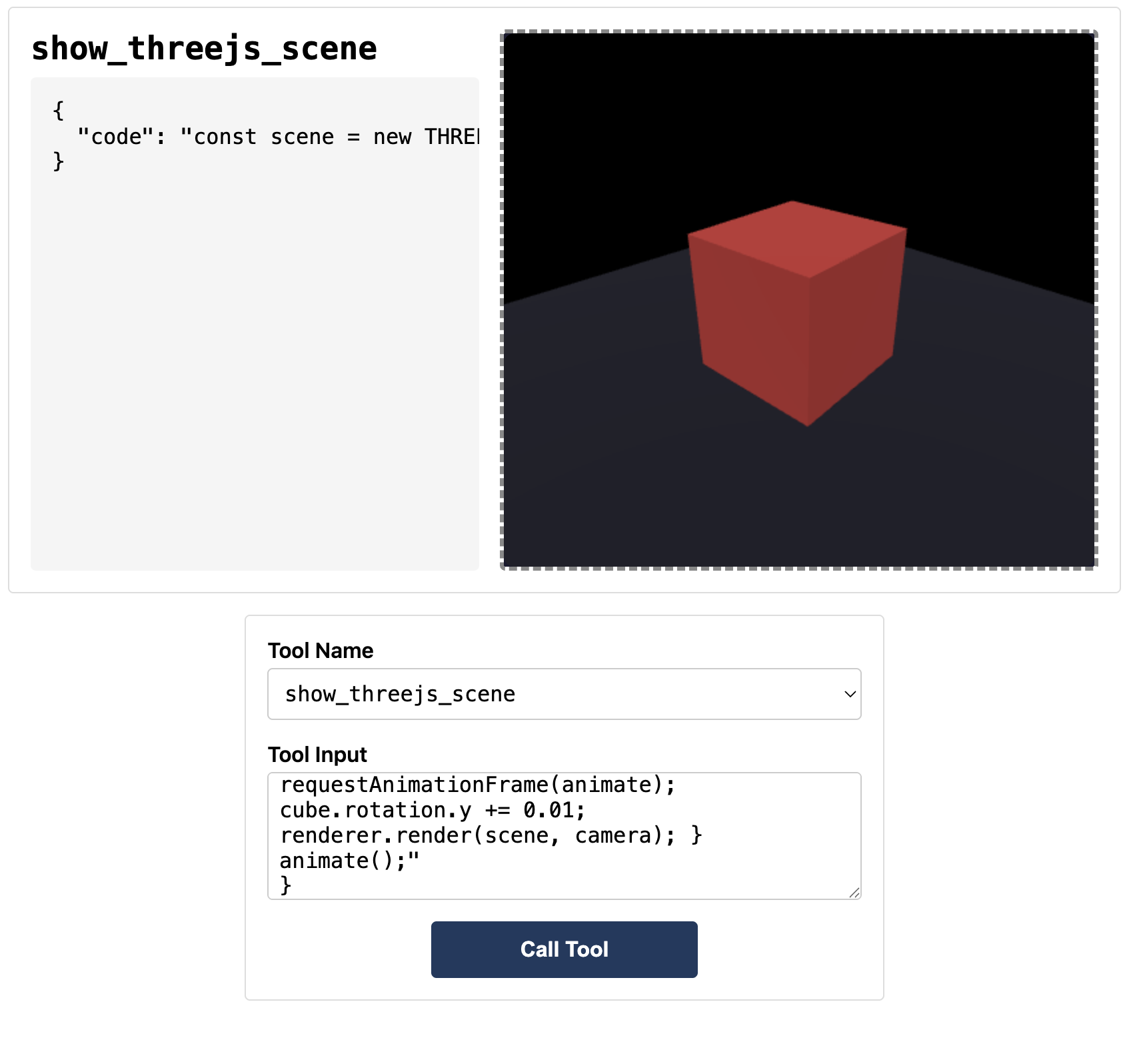
Tools
| Tool | Description |
|---|---|
show_threejs_scene |
Render 3D scene from JavaScript code |
learn_threejs |
Get documentation and examples |
Quick Start
# Build
npm run build

# Run (stdio mode for Claude Desktop)
bun server.ts --stdio

# Run (HTTP mode for basic-host)
bun server.ts
Code Structure
threejs-server/
├── server.ts                    # MCP server with tools
├── mcp-app.html                 # Entry HTML
└── src/
    ├── mcp-app-wrapper.tsx      # Generic MCP App wrapper (reusable)
    ├── threejs-app.tsx          # Three.js widget component
    └── global.css               # Styles
Key Files
src/mcp-app-wrapper.tsx
Generic wrapper handling MCP connection. Provides WidgetProps interface:
interface WidgetProps<TToolInput> {
  toolInputs: TToolInput | null; // Complete tool input
  toolInputsPartial: TToolInput | null; // Streaming partial input
  toolResult: CallToolResult | null; // Tool execution result
  hostContext: McpUiHostContext | null; // Theme, viewport, locale
  callServerTool: App["callServerTool"]; // Call MCP server tools
  sendMessage: App["sendMessage"]; // Send chat messages
  sendOpenLink: App["sendOpenLink"]; // Open URLs in browser
  sendLog: App["sendLog"]; // Debug logging
}
src/threejs-app.tsx
Widget component receiving all props. Uses:
toolInputs.code- JavaScript to executetoolInputsPartial.code- Streaming previewtoolInputs.height- Canvas height
server.ts
MCP server with:
show_threejs_scenetool linked to UI resourcelearn_threejsdocumentation tool- stdio + HTTP transport support
Available Three.js Globals
THREE; // Three.js library
canvas; // Pre-created canvas
(width, height); // Canvas dimensions
OrbitControls; // Camera controls
EffectComposer; // Post-processing
RenderPass; // Render pass
UnrealBloomPass; // Bloom effect
Test Input
Copy contents of test-input.json to test in basic-host (http://localhost:8080).
Example Code
const scene = new THREE.Scene();
const camera = new THREE.PerspectiveCamera(60, width / height, 0.1, 100);
camera.position.set(2, 2, 2);

const renderer = new THREE.WebGLRenderer({ canvas, antialias: true });
renderer.setSize(width, height);
renderer.shadowMap.enabled = true;

const cube = new THREE.Mesh(
  new THREE.BoxGeometry(),
  new THREE.MeshStandardMaterial({ color: 0x00ff88 }),
);
cube.castShadow = true;
cube.position.y = 0.5;
scene.add(cube);

const floor = new THREE.Mesh(
  new THREE.PlaneGeometry(5, 5),
  new THREE.MeshStandardMaterial({ color: 0x222233 }),
);
floor.rotation.x = -Math.PI / 2;
floor.receiveShadow = true;
scene.add(floor);

const light = new THREE.DirectionalLight(0xffffff, 2);
light.position.set(3, 5, 3);
light.castShadow = true;
scene.add(light);
scene.add(new THREE.AmbientLight(0x404040));

function animate() {
  requestAnimationFrame(animate);
  cube.rotation.y += 0.01;
  renderer.render(scene, camera);
}
animate();
Creating a New Widget
- Copy this example
- Rename
threejs-app.tsxto your widget name - Define your
ToolInputinterface - Implement your widget using the
WidgetProps - Update
server.tswith your tools